
Updated August 2026
Incognito mode on Android Chrome
Chrome for Android has the most-used incognito mode on earth and the least-used lock setting. Both take under a minute to set up, and neither touches the two things that actually leak.
Open an incognito tab
- -Tap the three-dot menu in Chrome, then New incognito tab.
- -Or long-press the Chrome icon on your home screen and choose New incognito tab.
- -Long-press any link and choose Open in incognito tab.
Lock incognito tabs behind biometrics
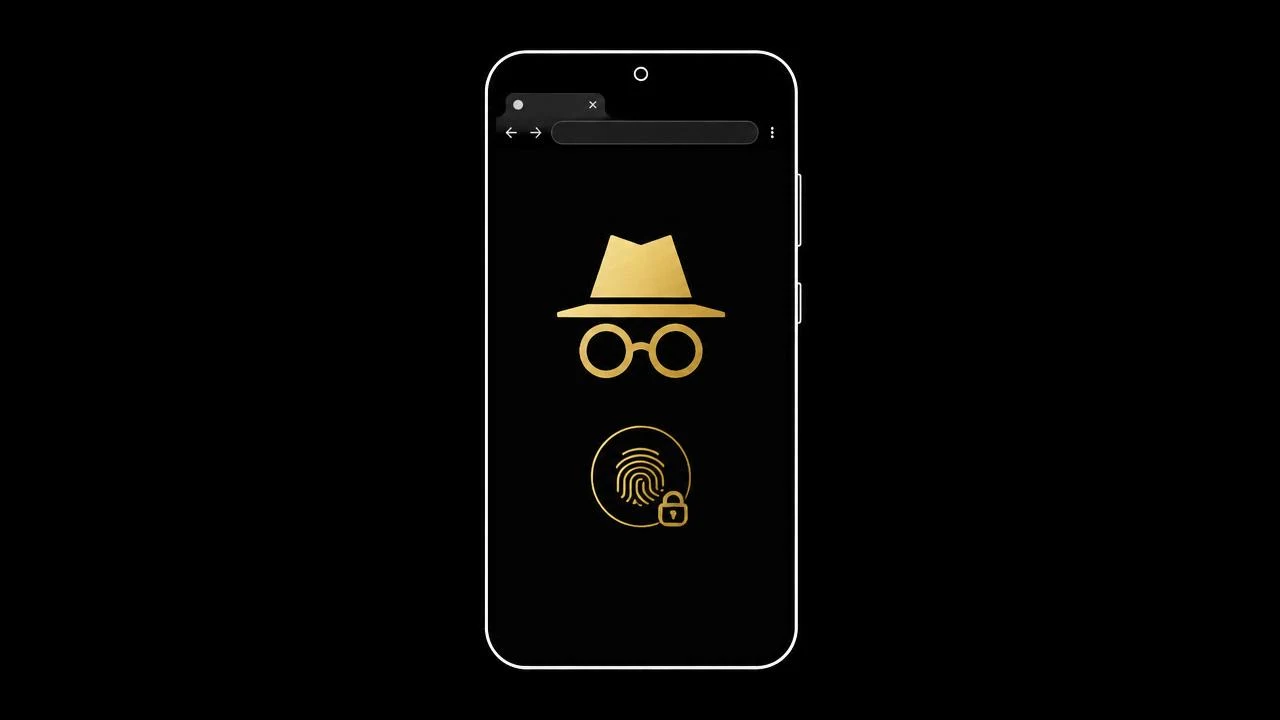
Chrome Settings, then Privacy and security, then Lock incognito tabs when you leave Chrome. Incognito tabs are then hidden behind your fingerprint or PIN, which handles the realistic risk on a phone that gets handed around.
Exit cleanly
- -Open the tab switcher, select the incognito section, then Close all incognito tabs.
- -Or tap the Close incognito tabs notification in the notification shade.
- -Closing the last incognito tab discards that session's cookies and cache.
Full instructions, including removing incognito entirely, are in how to turn off incognito mode.
What Android still records
- -Your Google account activity if you are signed in elsewhere in the OS.
- -The advertising ID, unless you delete it in Settings, Privacy, Ads.
- -DNS lookups, unless Private DNS is configured.
- -Search queries, at whichever engine Chrome defaults to.
Harden the rest of the phone with the best private browser setup for Android.
Change the search default - that is the real win
Chrome Settings, Search engine. Pointing Android at a no-log engine removes the biggest remaining record. DeepIncognito installs as a home-screen web app, keeps no query logs, stores nothing locally, and erases visible results with a swipe.
Frequently asked
Search privately. Leave no trace.
DeepIncognito is a private search layer with one-tap erase and sessions that auto-destruct on inactivity.
Try a private search